PicoBerry to UModeler X
Concept to Creation in Unity
AI starts the model, you turn it into something you created. Generate your concepts through PicoBerry on desktop web, mobile web, or inside the UModeler X built-in window, all fully synchronized. Your PicoBerry assets stay connected, so you can start anywhere and continue the workflow seamlessly in Unity.
A Workflow that turns your Ideas and Concepts into Finished Creations
Generate your concept with PicoBerry inside Unity, Desktop Web or Mobile Web. Then edit with UModeler X, all without switching tools.
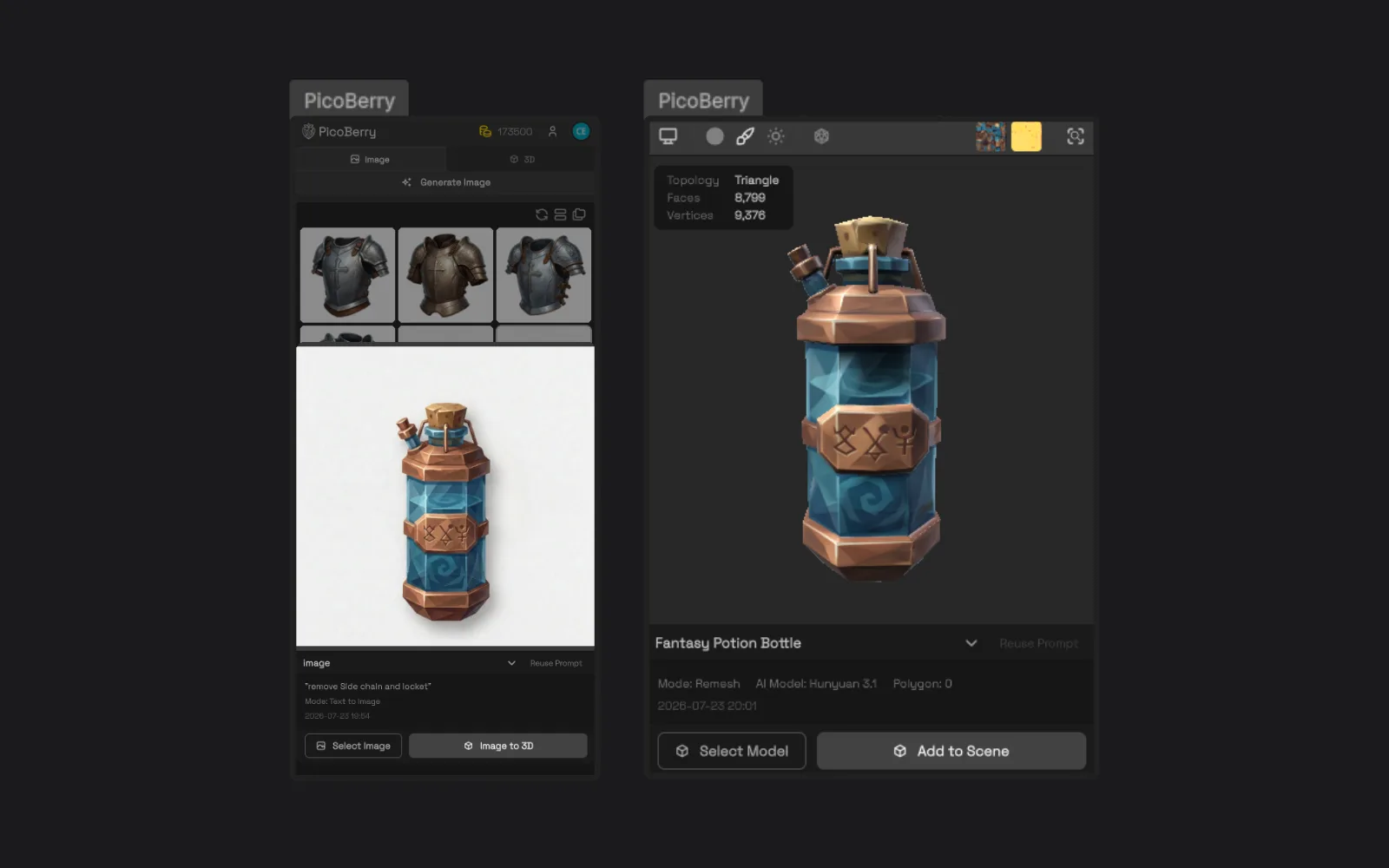
Continue in Unity
Access your synced PicoBerry assets inside Unity through the UModeler X built-in window, and add them to your scene.
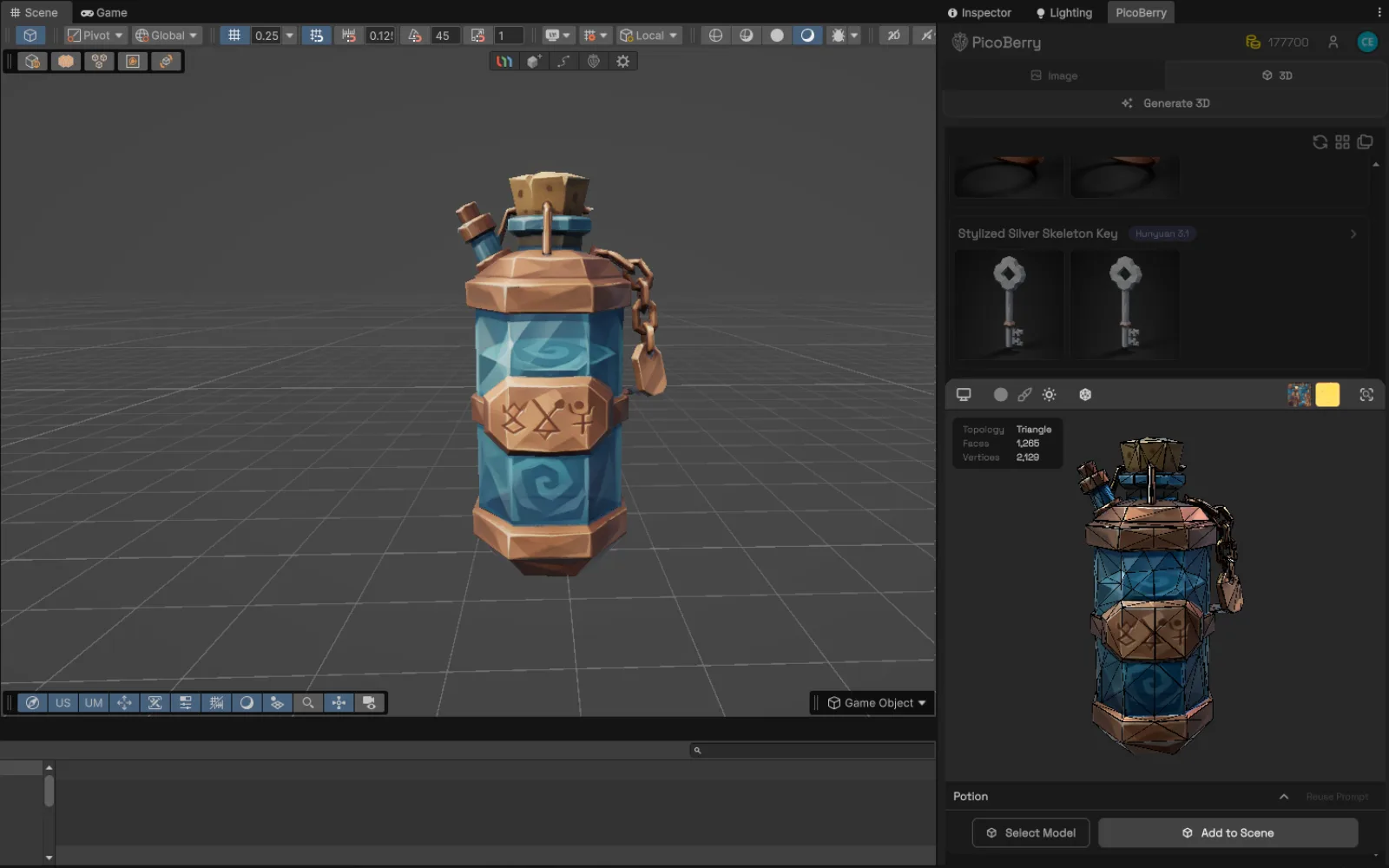
Place in your Scene
Place and scale the asset in your Unity scene, and check how it reads in real lighting and context.
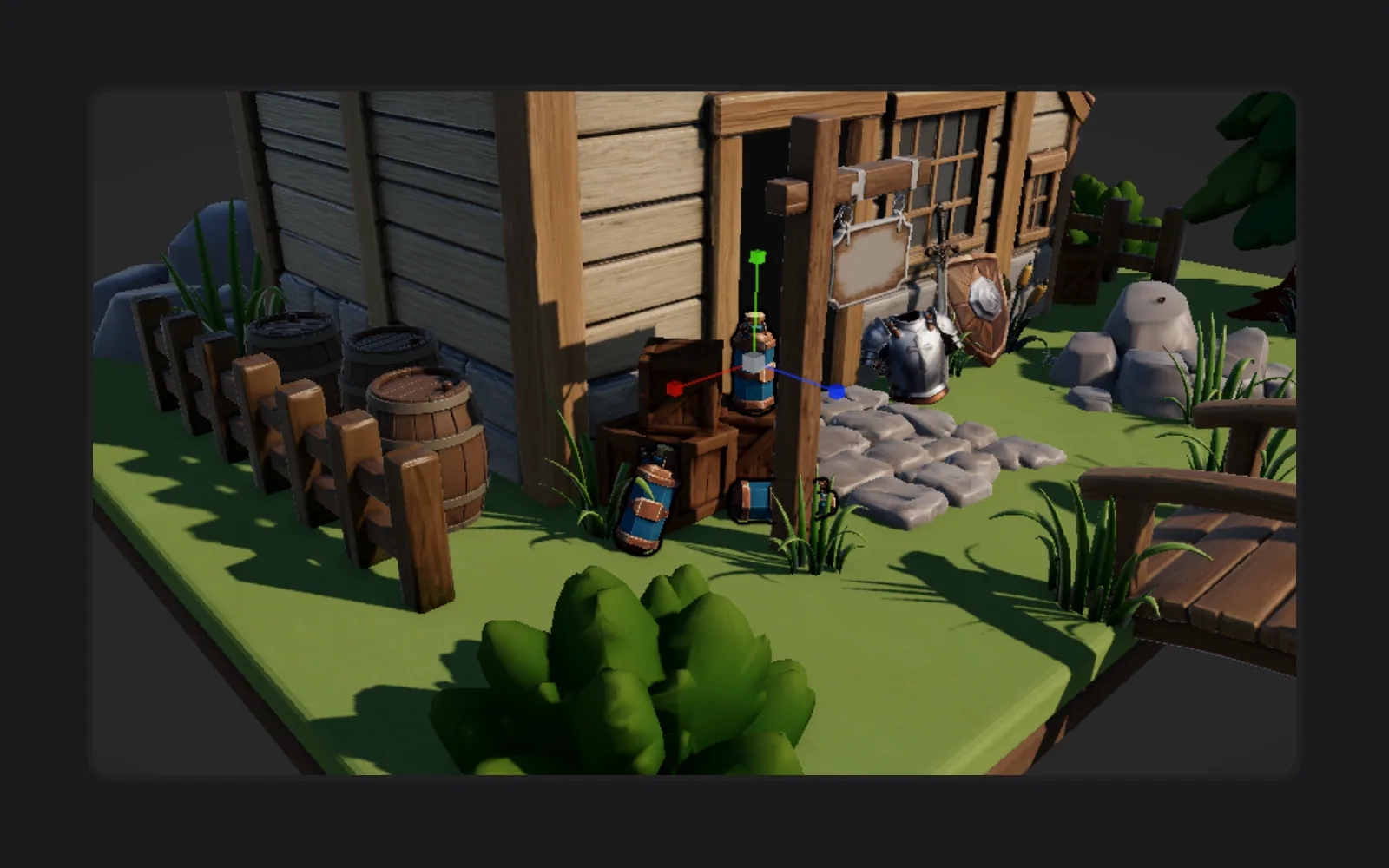
Finish Inside Unity
Refine geometry, UVs, and paint with UModeler X until it's ready — without leaving Unity.
From PicoBerry Generation to UModeler X Editing in Unity
Generate with PicoBerry
Start on Desktop Web, Mobile Web or the UModeler X built-in Unity window.
Access in Unity
Open your synced PicoBerry assets inside Unity. Click on your generation in the Asset library screen to add it to the scene.
Refine with UModeler X
Edit geometry, UVs, and 3D paint right in the editor when the draft needs work.
Review in your Scene
See your results in the Unity Scene, refine lighting and positioning, and keep the versions that match your vision.
Unity-Native Tools for Finishing AI Assets
Modeling in the Editor
Reshape, cut, and rebuild geometry directly on imported assets inside Unity.
UV Editing
Fix and refine UVs when a generated draft needs cleaner texturing.
Painting & Materials
Paint and adjust the look of an asset in context, in your actual scene lighting.
Rigging Tools
Set up assets for animation workflows inside Unity. May require project-specific review or refinement.
See the Workflow in Action
Generate with PicoBerry on web, mobile, or directly inside Unity. Your assets stay synchronized in the PicoBerry workspace, so you can continue refining them with UModeler X inside the Unity Editor.
The AI output is not treated as final. It becomes an editable asset draft that can be inspected, converted, reshaped, painted, and adapted inside Unity.
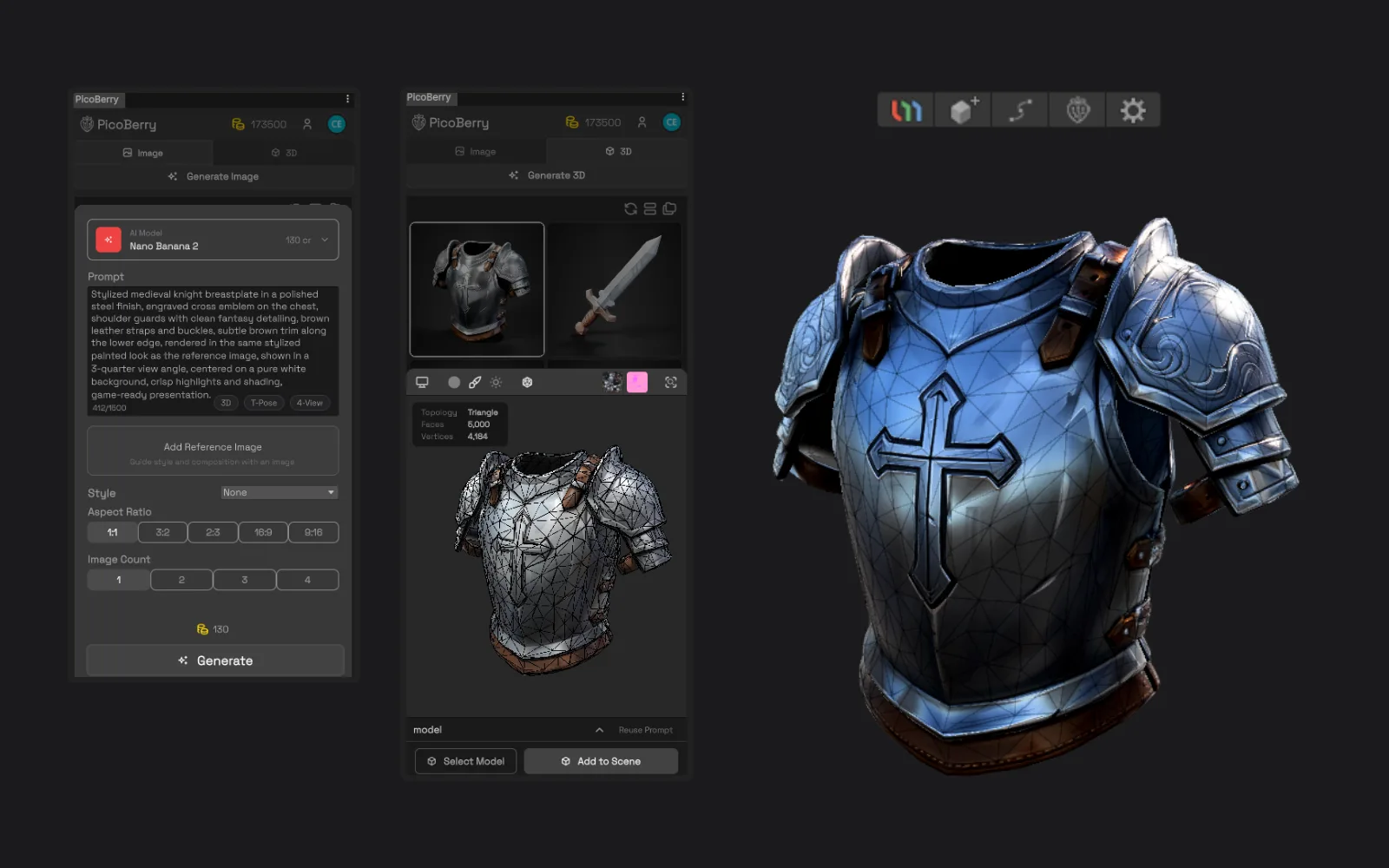
Generating a 3D asset with the built-in PicoBerry Multi-Model engine in Unity.
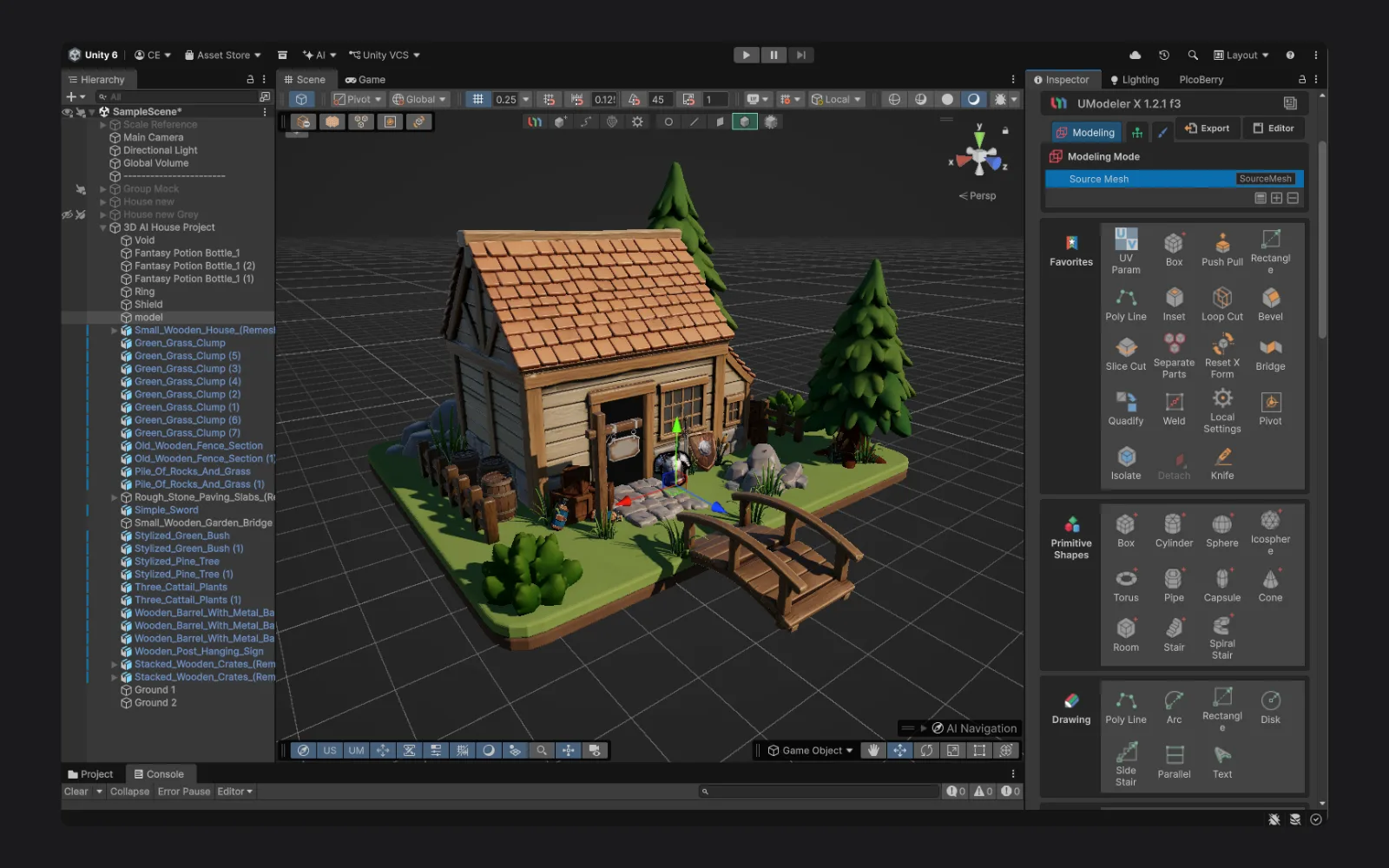
Finished stylized game assets in the scene after editing and refinement.
Frequently Asked Questions
What is UModeler X?+−
UModeler X is a Unity-native 3D creation and editing workflow for building, editing, refining, adapting, and finishing 3D assets directly inside the Unity Editor — modeling, UV editing, painting, and rigging included.
Is UModeler X free?+−
Yes, UModeler X is completely free — no sign-up, no trial period, just download and start creating.
Do I need PicoBerry to use UModeler X?+−
No. UModeler X works as a Unity modeling and editing tool on its own. PicoBerry adds an AI generation path in front of it: generate drafts with PicoBerry inside Unity, then finish them with UModeler X.
Where can I generate images and 3D with PicoBerry?+−
Generate with PicoBerry on web, mobile, or directly inside Unity — including turning an image into a 3D model without ever leaving the editor. Your assets stay synchronized in the PicoBerry workspace, so you can continue refining them with UModeler X inside the Unity Editor.
Can UModeler X edit AI-generated assets?+−
Yes — imported assets, including AI-generated drafts, can be reviewed, refined, or adapted for project needs. The amount of refinement depends on the asset and your project's requirements.
Can I import and edit my own assets using UModeler X?+−
Yes. Using the Mesh Ops tools, you can convert your existing models into editable UModeler X objects with the UModelerize operation, then edit them directly inside Unity. Mesh Ops also includes operations like Combine, Separate Parts, and Reset XForm.
Can I export my 3D creations from UModeler X to use in other software?+−
Yes. UModeler X has a built-in export function. You can export directly to OBJ, STL, and PLY, and to FBX by installing Unity's FBX Exporter package (Package Manager → FBX Exporter, then right-click your object → Export To FBX). That lets you take your finished models into other 3D software and engines.
Is PicoBerry only for Unity?+−
No. PicoBerry is an AI 3D asset generation platform for game developers and creators, and it supports broader game-engine workflows including Unreal, Godot, and Blender. This page focuses on the Unity path because UModeler X lives inside the Unity Editor.
Which Unity versions does UModeler X support?+−
UModeler X fully supports Unity 6 and Unity 2022.3 LTS or later, across all three render pipelines (Built-in, URP, and HDRP). Unity 2020 and 2021 are no longer supported as of UModeler X 1.2.
How do I get started?+−
Get UModeler X free for your Unity project at unity.umodeler.com/download, then sign up free at picoberry.ai. Run your first generation → import into Unity → refine with UModeler X. This is your workflow loop.
Explore More
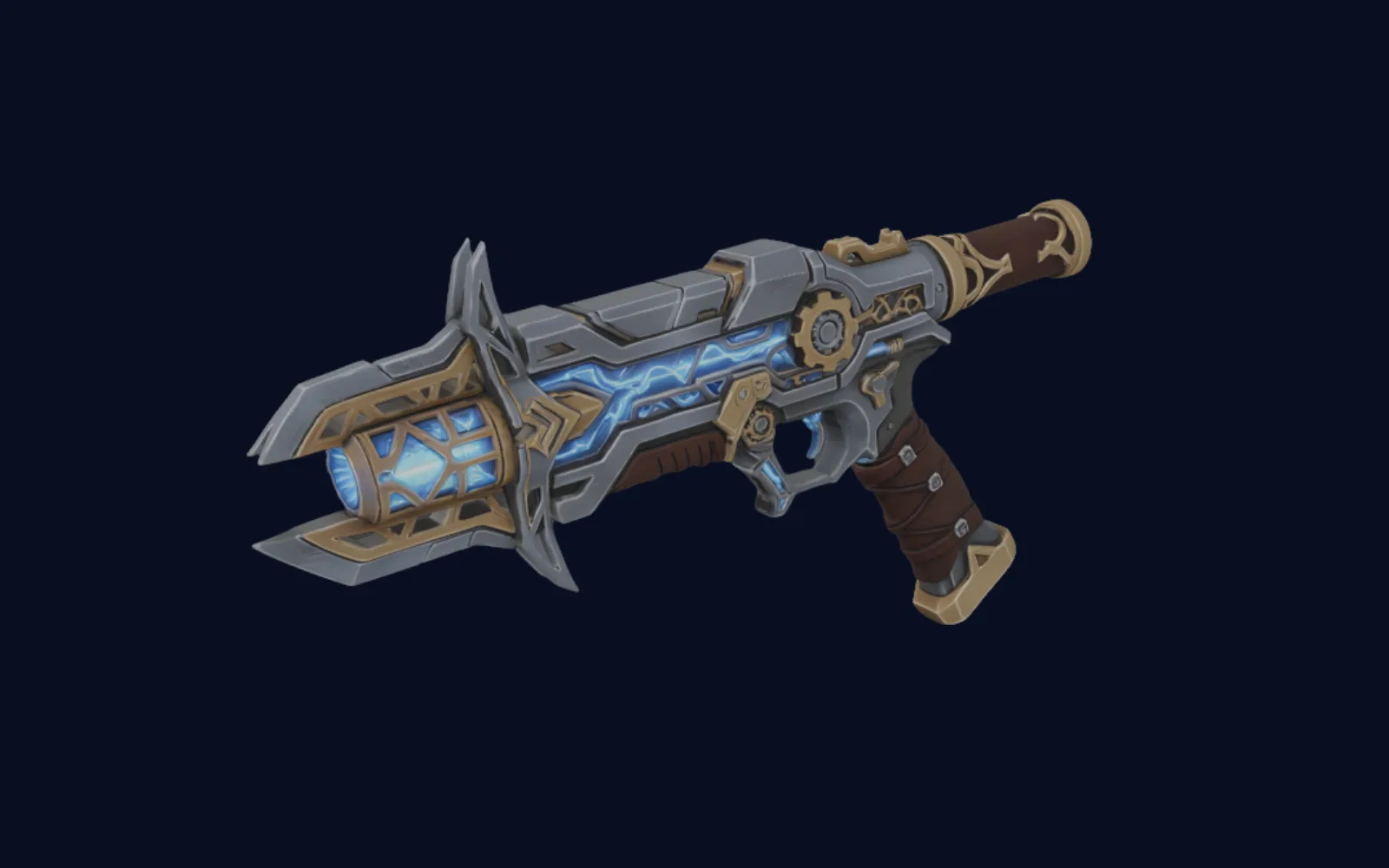
AI 3D Generator for Unity
Generate asset drafts and bring them into Unity workflows with a 3D AI Multi-Model Engine.
Explore →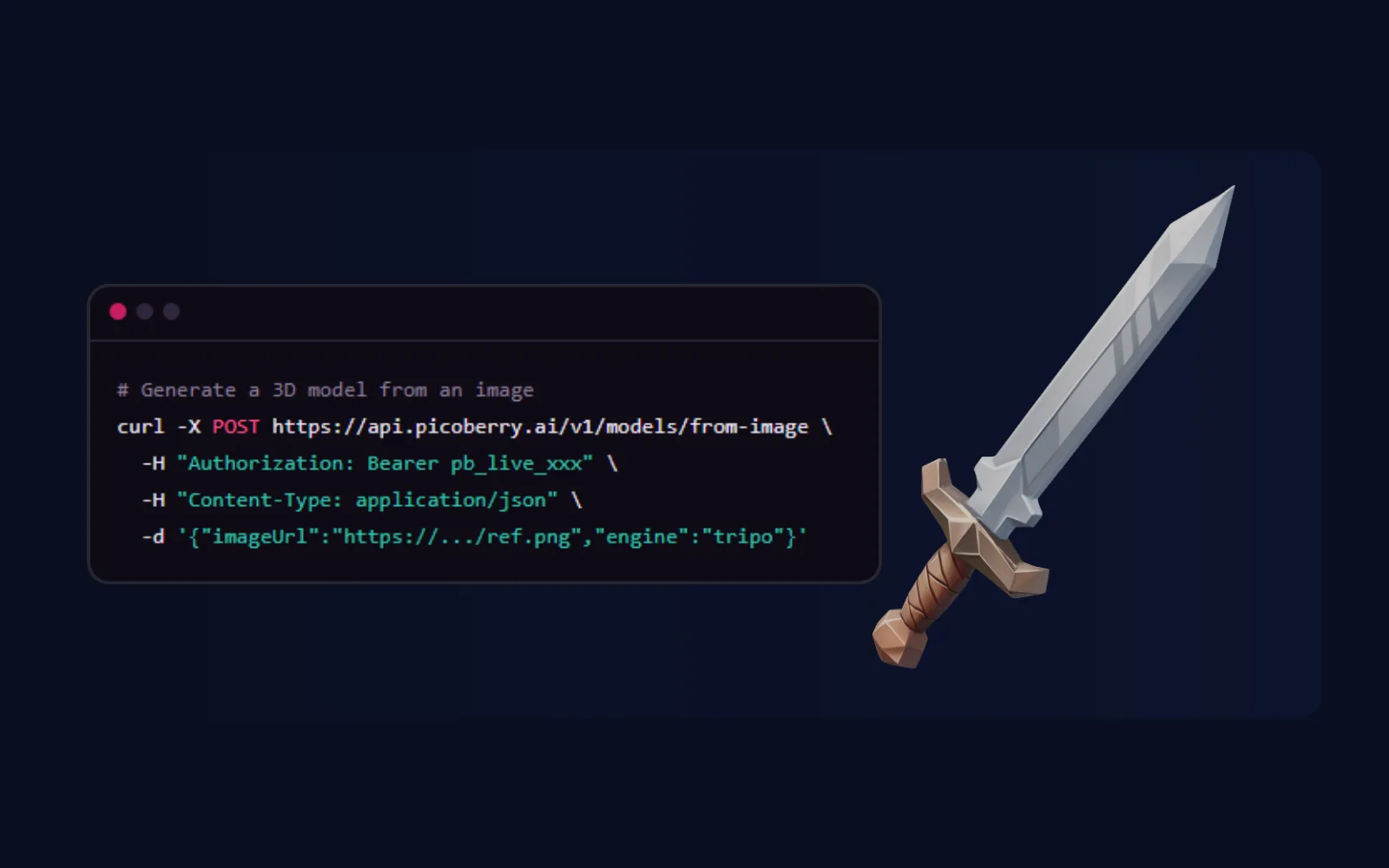
AI 3D Generation API
Build generation into your tools, pipelines, and agents with one REST API.
Explore →PicoBerry AI in UModeler X
See how PicoBerry AI generation is built into UModeler X inside the Unity Editor.
Explore →3D Creation Workflow, All in Unity
Generate, refine, and finalize your AI assets in Unity with PicoBerry and UModeler X